I Signed Up for HyperWrite and Built an Outline. Here Is Every Step.

Five screens, one black-hole essay, and an honest look at where this AI writing assistant helps and where it does not.
7.5/10 ● ● ● ● ○ | In one line A fast, friendly assistant that is strongest inside your inbox and browser, not as a standalone editor. Best for Emails, short posts, first drafts, and outlines Starts at Free plan, then $19.99 per month |
HyperWrite sells itself with two words on the front page: write faster, work smarter. That is a big promise for a tool that costs less than a streaming bundle, so I made an account and ran it through a real task from scratch. Below is exactly what I saw at each screen, what worked, and the parts I would fix before recommending it to a friend.
1 - The landing page sets the tone
The homepage is calm and text first, which fits a writing product. The headline reads Write faster. Work smarter. with a one-line description underneath: an AI writing assistant with autocomplete, web search, and citations. There are two clear paths, a blue Start writing button and a big Add to Chrome button, plus a banner pushing the featured Chrome extension.
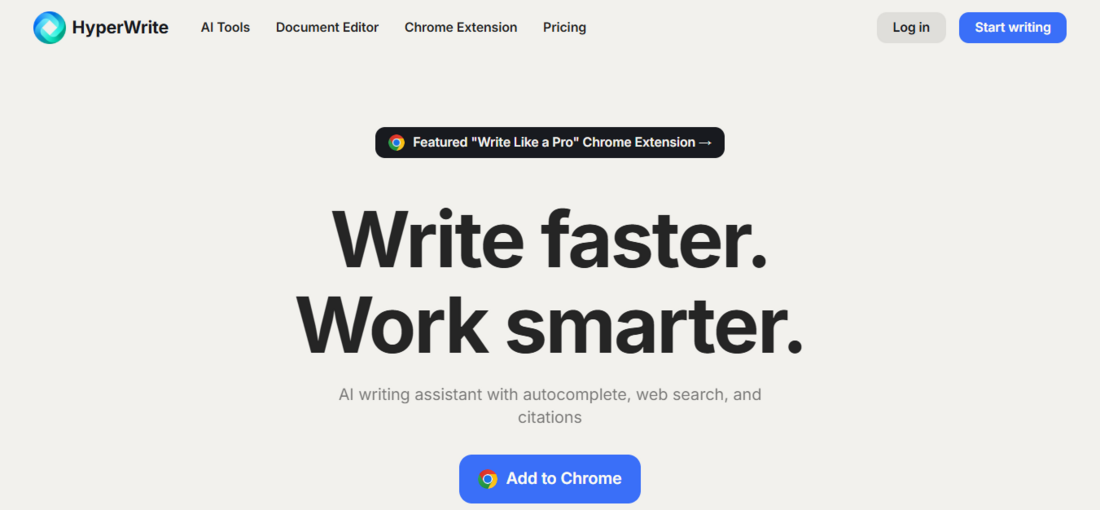
The landing page. Two calls to action, and the extension gets top billing.
The copy is clean, but it is also the same promise every writing tool makes right now. What actually caught my eye was how hard the page pushes the browser extension over the web app. That turned out to be a fair signal. HyperWrite is at its best when it rides along inside tools you already use, and the homepage is quietly telling you that.
2 - Signing in takes about ten seconds
Clicking Start writing sends you to a simple login card. You can continue with Google or with email, and that is the whole screen. No long form, no plan selection wall, and no credit card before you have seen anything.
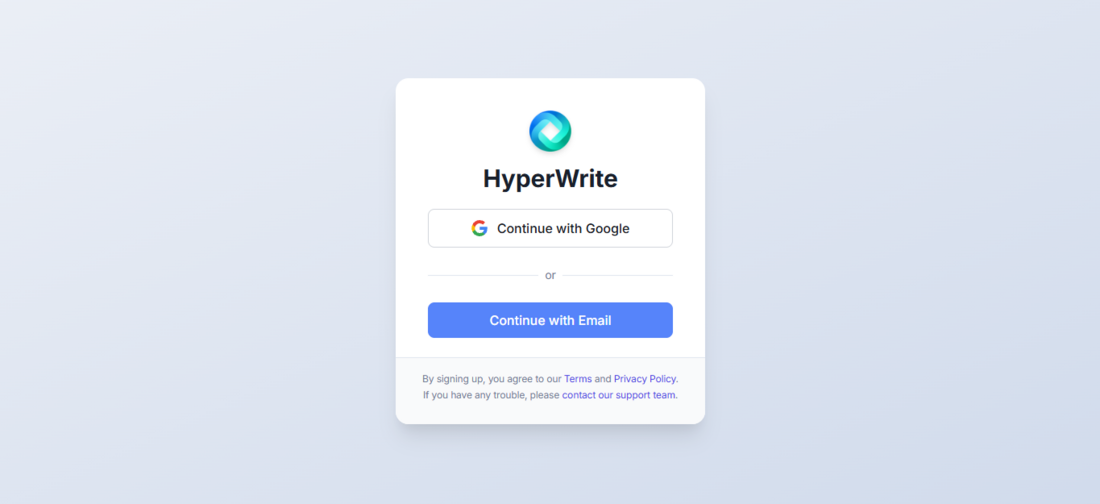
Sign-up is a single card with two buttons. Low friction by design.
I appreciate that they let you in before asking for money. A lot of tools gate the first click behind a paywall, and it kills trust. Here the free plan is limited, but you get to poke around first, which is the right order.
3 - The dashboard is a search bar and four tools
The main dashboard opens on a single prompt box labeled Ask HyperWrite with the placeholder What can I do for you? Under it sit four quick tools, Create Document, Rewrite Content, Flexible AutoWrite, and Scholar AI, with a link to view all tools. There is also a card nudging you to install the Chrome extension, noting that more than 90,000 writers use it inside Gmail, Docs, and ChatGPT.
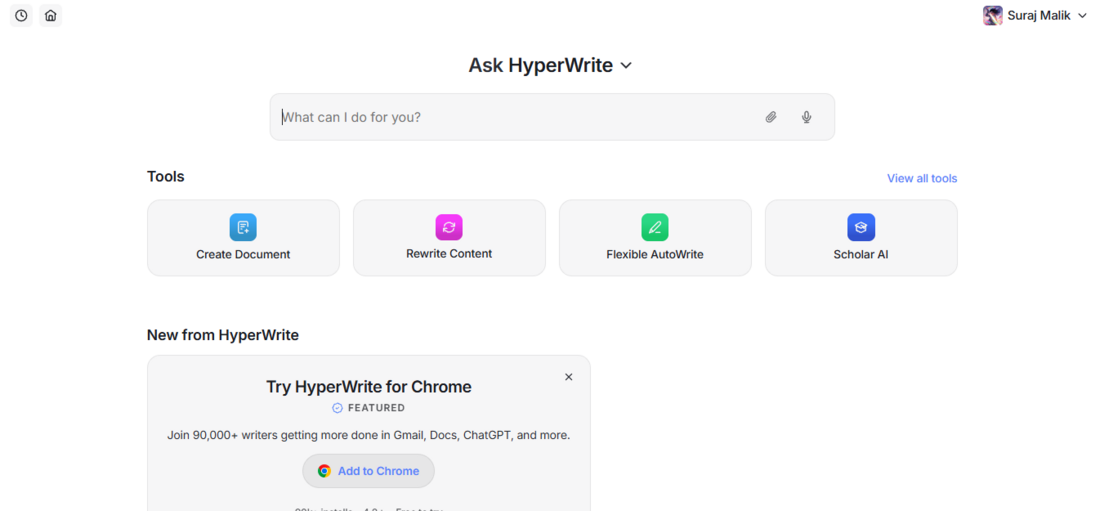
The dashboard keeps it simple: ask a question, or pick a tool.
This is where the product feels approachable. You are not staring at a blank canvas wondering what to do. My one gripe is that the extension prompt shows up again here. By the third screen I got the message. I would rather that space go to a short example of what a good prompt looks like, since new users usually freeze at the empty box, not at the install step.
4 - Asking for an outline, and getting asked questions back
I opened the document editor, which pairs a blank page on the left with a chat panel on the right, and typed Please create an outline for my document. Instead of dumping generic text, it asked for the topic, purpose, target audience, and length, and told me how to attach a file. I replied with a very casual line, i wanna write about blackholes, and it started working.
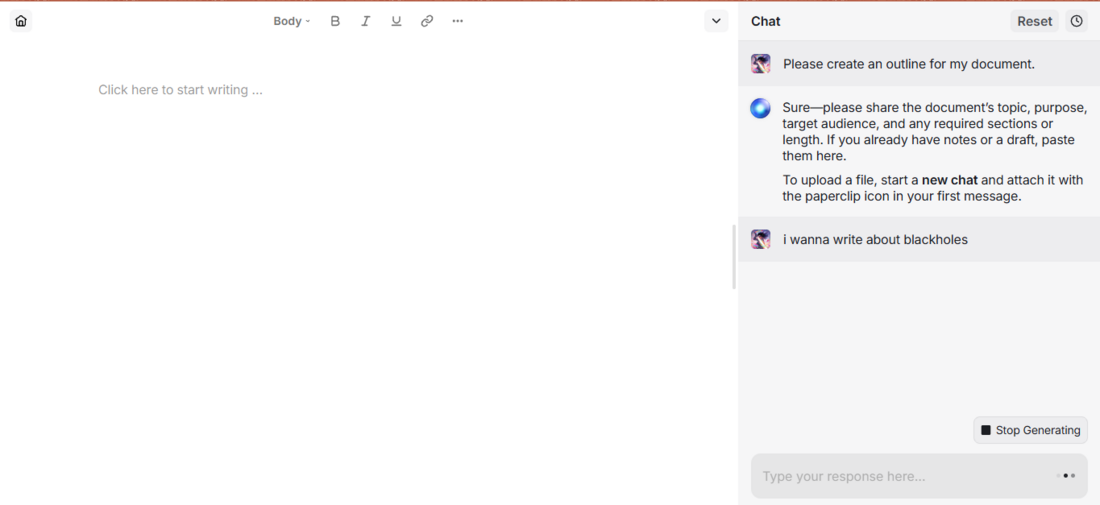
The editor asks clarifying questions before it writes anything.
I went in expecting a wall of filler and got a follow-up question instead, which I liked more than I thought I would. It behaves like a helper that wants context rather than a slot machine. The flip side is that it did not just run with my three-word prompt, so if you want instant output with zero back and forth, this extra step might feel slow. For a real document, I will take the questions.
5 - The outline it produced is genuinely usable
From that one lazy sentence, it built a titled draft, Black Holes: The Strangest Objects in Space, with clean sections: an introduction, What Is a Black Hole, How Black Holes Form, and more, each broken into sensible bullet points. The chat panel kept expanding the prose beside it. A menu in the top corner offered Import file, Copy document, Export as DOCX, and Share, so getting the result into Word is one click.
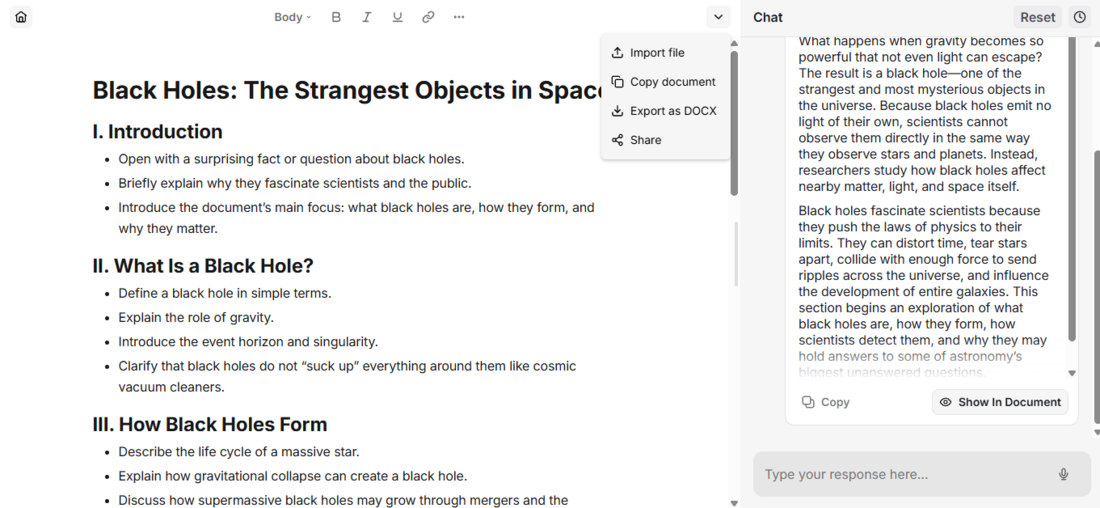
The finished outline, with export to DOCX sitting right in the menu.
Honestly, the structure was better than I expected for a throwaway prompt. The headings were logical and the bullets gave me somewhere to start, which is the real job of an outline. It did lean factual and a little safe, so the voice is flat until you rewrite it. I would treat this as scaffolding, not a finished piece, and the one-click DOCX export is what makes that workflow actually convenient.
What real users say, the good and the rough
A single test is one data point, so I read through public reviews on G2, TrustRadius, and Trustpilot-style listings to see where my experience matched other people and where it did not. The picture is mixed in a useful way.
I use it every day for research, writing, business plans, and presentations.
Small-business owner, five-star review on G2. Praised the speed and ease of use, with nothing to dislike.
Built a better blog post in under ten minutes.
Content writer on G2. Loved the autocomplete across Google Docs and Gmail, with a small gripe about a two to three second wait for suggestions.
It handles offer letters, contracts, emails, and presentations when I am short on time.
Daniel Lopez, HR executive, reviewing on TrustRadius. Values it most when there is no time to fuss over wording.
The price feels steep for what you get.
Marketer on a public review site. Also noted the AI sometimes produced stiff, robotic sentences that needed heavy editing.
The editor was hard to find and not very intuitive.
A recurring theme in reviews collected by eesel AI, along with suggestion speed lagging for fast typists.
Checkout glitches and slow customer service soured the experience.
Several lower-rated Trustpilot-style reviews, mostly from newer accounts, flagged billing friction and generic essay output. Worth weighing against the volume of positive notes.
The pattern I see is consistent with my own run. People who use HyperWrite for short, frequent writing (emails, replies, quick posts, first drafts) tend to be happy. People who expected a polished long-form article or flawless academic paper are the ones who walk away frustrated. Match the tool to the job and it holds up.
What it costs in 2026
HyperWrite runs on a freemium model with two paid tiers. The free plan is really a trial, capped at a handful of generations a month. Annual billing knocks roughly 20 percent off the monthly rates below.
| Plan | Price | What you get |
|---|---|---|
| Free | $0 | About 15 generations a month, TypeAhead, and basic tool access. Good for testing, not for daily work. |
| Premium | $19.99/mo | 250 AI messages a month, unlimited TypeAhead, custom personas, and real-time citations. The sensible starting tier. |
| Ultra | $44.99/mo | Unlimited AI messages, more personas, longer generations, longer memory, priority support, and early feature access. |
The 250-message cap on Premium is the number to watch. For casual use it is plenty, but if you generate all day you will hit it and feel pushed toward Ultra. Two more things to know before you buy: it is English only right now, and there is no dedicated plagiarism checker. Students and multilingual writers should factor that in.
Alternatives worth a look before you commit
HyperWrite is a generalist. Depending on what you actually write, one of these may fit you better, and most offer a free tier or trial so you can compare before paying.
Jasper - Around $39 to $49 per month
The pick for marketing teams. Bigger template library, real brand-voice controls, and collaboration features HyperWrite does not have. Costs more, and it is overkill if you only write emails.
Rytr - From about $9 per month
The budget choice. Simple, template-driven, and fast for blogs, captions, and emails. Less powerful, but hard to beat on price for freelancers watching every dollar.
Writesonic - Free tier, then paid plans
Built for SEO. It plugs into tools like Surfer and is aimed at publishing search-ready blog posts at volume. Reach for this if ranking on Google is the goal.
Copy.ai - Free tier available
Strong on marketing copy and, importantly, supports 25 or more languages. If HyperWrite being English-only is a dealbreaker, start here.
QuillBot - Free tier, cheap upgrade
Not a full writing suite, but the best of this group at paraphrasing and rewriting existing text. A good companion rather than a replacement.
If I had to choose for myself, it would come down to the workflow. For inbox and browser writing all day, HyperWrite’s extension is genuinely the draw and I would keep it. For a marketing team that needs one consistent voice across a lot of content, I would spend the extra on Jasper. For pure budget, Rytr does the basics without complaint.
So, is HyperWrite worth it?
After running it end to end, my answer is a qualified yes. The sign-up was painless, the dashboard did not overwhelm me, and it turned a three-word prompt into a structured outline I could actually build on and export to Word in one click. Asking clarifying questions before writing is a small thing that quietly improves the output.
It is not magic. The prose skews factual and safe, so you will edit for personality. The real strength is not the standalone editor at all, it is the extension living inside Gmail, Docs, and the sites where you already write. If most of your writing is short, frequent, and everyday, the Premium plan earns its $19.99. If you need polished long-form articles, brand consistency across a team, or another language, one of the alternatives above will serve you better.
Try the free plan first, spend an afternoon with it on your own real tasks, and let that decide it. That is the only test that matters.
How this was tested. I created a fresh account and completed the full flow shown above, from landing page to exported outline, on the web app. Screenshots are from that session.
Discussion 0
More posts

NovelAI: An Hour of Notes Before I Wrote a Single Word
A hands-on NovelAI review: the broken sign-up, the encryption catch, real pricing, the models, real user reviews, and wh...

StealthWriter AI : Hands-On Test of the Humanizer and AI Detector
I put StealthWriter AI through a real test: a Wikipedia paragraph that its detector scored 0% human was rewritten to 100...

Originality.ai: I Tested It and It Flagged Wikipedia as 100% AI
I pasted a plain Wikipedia paragraph into Originality.ai and it came back "Likely AI – 100% Confidence." Two scans later...
Please log in or create an account to join the discussion.