A practical walkthrough for turning rough ideas into images you can reproduce on purpose.
Every AI image tool works the same way underneath. You hand it a sentence, and it makes its best guess at the picture behind that sentence. The distance between what you imagined and what appears on screen is almost always a gap in the instructions. This guide is about closing that gap, not with fancy vocabulary, but with clearer decisions made before you press generate.
Start With the Problem, Not the Prompt
Type a car into any generator and you will get a car. But which one? What make, at what angle, shot at what time of day, in what style? You did not say, so the model decided for you, and it will decide differently every single time. That is the core issue with loose prompts. Every blank you leave becomes a coin flip the model makes on your behalf.
Specificity fixes this. When you name the make, the framing, the light, and the mood, you are not just adding words. You are removing the model's freedom to wander. The payoff is threefold:
- Fewer do-overs, because the first result already lands close.
- Consistency, because the same wording tends to produce the same feel.
- Reproducibility, because a good image you can describe is an image you can make again.
None of this asks you to talk like an art director. It asks you to work out, ahead of time, which parts of the picture you actually care about, and then to say those parts out loud.
The Seven Pieces a Complete Prompt Contains
You rarely need all of these at once. But once you know them, you can glance at a disappointing result and immediately spot which one you left out. Treat the list less as a form to fill in and more as a diagnostic panel.
| Piece | What it decides | Example |
|---|---|---|
| Subject | The main thing, named plainly | a red fox, a vintage bicycle, an office lobby |
| Details | Attributes that kill guesswork | wet fur, rusted frame, marble floor |
| Style | The visual language | photo, watercolour, 3D render, line art |
| Framing | Camera angle and composition | close-up, wide shot, top-down, rule of thirds |
| Light | Source and mood of the lighting | soft morning light, harsh backlight, neon glow |
| Colour and feel | Palette and emotional register | muted pastels, high contrast, warm and calm |
| Environment | The backdrop or setting | a foggy pine forest, a bare studio |
| Technical | Ratio and any camera terms | 16:9, 85mm lens, shallow depth of field |
When a result feels off, run down this panel and ask which piece you never specified. That single question resolves most misfires faster than rewriting from scratch.
The Order That Works Almost Everywhere
Most models pay the most attention to whatever comes first, so lead with your subject and expand outward. This sequence holds up across nearly every tool:
- 1. Subject. What the image is of.
- 2. Must-have details. The attributes that have to be right.
- 3. Style. Photo, illustration, render, and so on.
- 4. Framing and light. The angle plus the light source and mood.
- 5. Colour and feel. Palette and overall emotion.
- 6. Technical. Aspect ratio and any camera language.
Stitched together, it looks like this:
Full prompt a red fox standing in fresh snow, thick winter coat, breath visible in the cold air, wildlife photograph, low side angle, soft overcast light, cool blue-and-white palette, shallow depth of field, 3:2
Every clause maps to one rung on the ladder. That mapping is the real benefit. When a result misses, you know exactly which clause to rewrite instead of blindly retyping the whole thing.
See the Difference Side by Side
Nothing sells specificity like a direct comparison. Same idea, two levels of care.
The lazy version a dog
The model picks the breed, the pose, the background, the light, and the style. Every generation looks different, and none of them can be repeated on demand.
The considered version a golden retriever puppy sitting in tall summer grass, warm late-afternoon backlight, shallow depth of field, photographic, 3:2
Breed, setting, light, style, and framing are all locked in. The output is steady and lands near what you pictured. The stronger prompt is not padded for the sake of length. Each extra word is a decision reclaimed from the model.
Two Directions of Instruction
Prompts push in two directions at once. A positive instruction says what should appear, and it is the main prompt in every tool. A negative instruction says what to keep out, such as blur, extra fingers, watermarks, or stray text. How you supply a negative depends on the tool.
| Positive | Negative | |
|---|---|---|
| Job | Describes the content, style, and setting you want | Names the flaws or elements to exclude |
| Where it goes | The main prompt, in every tool | A dedicated field in Stable Diffusion and Flux, the --no parameter in Midjourney, or a plain "no text" request in ChatGPT Images |
A trick worth knowing When a tool has no negative field, you can often exclude something by phrasing it as a positive instead. "Clear blue sky" beats "no clouds", because some models latch onto the noun clouds and cheerfully paint in the very thing you were trying to banish.
Pick the Aspect Ratio on Purpose
Deciding the shape before you generate saves you a cropping chore later, and it changes how the model composes the frame. Here is a quick reference tied to where the image will actually live.
| Ratio | Shape | Use it for |
|---|---|---|
| 1:1 | Square | Profile pictures, avatars, album-style thumbnails |
| 4:5 | Tall portrait | Instagram and Facebook feed posts |
| 9:16 | Full vertical | Stories, Reels, TikTok, phone wallpapers |
| 3:2 | Classic photo | Prints, natural-looking photography |
| 16:9 | Widescreen | YouTube thumbnails, desktop scenes, slides |
| 2:3 | Tall photo | Posters, Pinterest pins, book-cover looks |
Habits That Sharpen Every Result
These are less tricks than a way of working. Adopt a few and your hit rate climbs.
Build up, do not front-load
Start with just a subject and a style. Generate once, see what the model assumes on its own, then add detail to steer it. You learn how that specific tool reads you.
Move one lever per generation
If you change the light, the palette, and the framing all at once and the result improves, you have no idea which change earned it. Isolate your edits.
Speak the medium's language
For photographs, reach for photography terms such as focal length, aperture, and lighting direction. For illustration, name the technique, for example gouache, cel shading, or ink and wash.
Feed it a reference when you can
Many tools accept an image alongside your text to anchor style, composition, or a character's likeness. Often that is quicker than describing a look in words.
Keep a log
Tools that expose a seed value let you reproduce or gently vary a result. Jot down the prompt, the settings, and the seed behind your best images so you can recreate them instead of hunting for them all over again.
A Worked Example, One Change at a Time
Here is what disciplined iteration looks like in practice. The goal is a cosy reading-nook image. Watch how each pass fixes exactly one thing.
Pass 1: subject and style only a reading nook by a window, photograph
The result is fine but generic. The light is flat and the mood is neutral, so the next pass adds light.
Pass 2: add light a reading nook by a window, photograph, warm late-afternoon sun coming through the glass
Warmer and more inviting, but the framing is still random. The next pass fixes framing only.
Pass 3: add framing a reading nook by a window, photograph, warm late-afternoon sun through the glass, low wide angle looking across an armchair
Now the composition tells a story. A final pass locks the palette and the output shape.
Pass 4: palette and ratio a reading nook by a window, photograph, warm late-afternoon sun through the glass, low wide angle looking across an armchair, muted earth tones with soft amber highlights, 3:2
Four passes, four isolated decisions. Because you changed one thing each time, you know precisely which edit did the work, and you can drop any of them if the scene ever needs a different mood.
Choosing the Right Tool for the Job
There is no single best generator, only the best one for a given goal, budget, and appetite for control. Here is the honest rundown.
Before you commit Versions, prices, and features in this space move fast. Treat everything below as a snapshot and confirm the current terms on each tool's own site before subscribing or building on it.
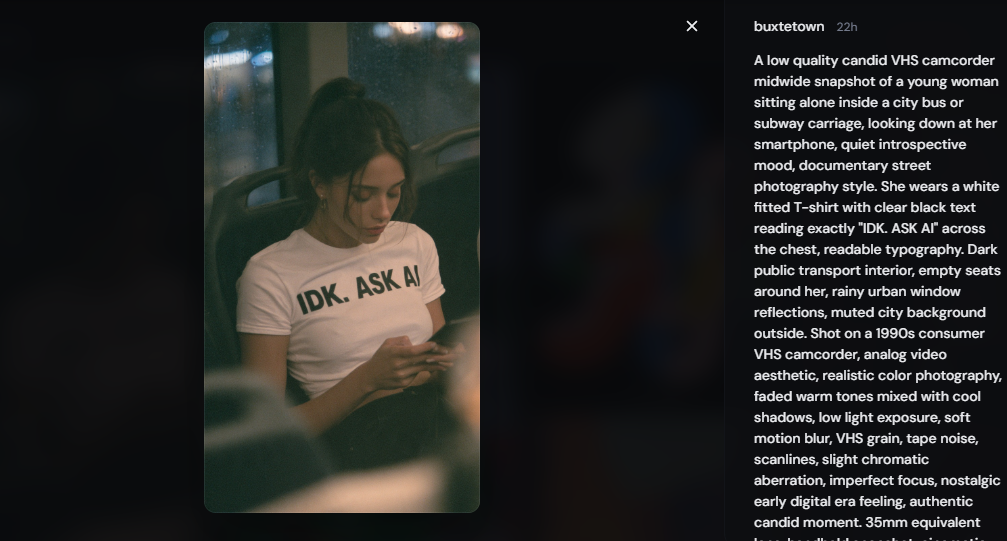
Midjourney for polish
A subscription tool that turns out glossy, stylised images with barely any effort, run through a web app and a Discord bot. Parameters like --ar for ratio and --no for exclusions give you some steering.
Strengths
- A gorgeous default look with minimal prompting
- A huge stylistic range
- Style and character reference features for consistency
- Commercial rights on paid plans
Trade-offs
- There's no free tier at all. It was pulled in 2023 after abuse, so the cheapest way in is the paid Basic plan at around $10/month.
- Images render semi-publicly by default: on lower tiers your prompts and results sit in shared galleries, and "stealth" privacy is locked to the top plans, which is awkward for confidential client work.
- It's a closed model, so there are no custom checkpoints or LoRAs, and text inside images still comes out garbled next to Ideogram or ChatGPT.
ChatGPT Images for accuracy and text
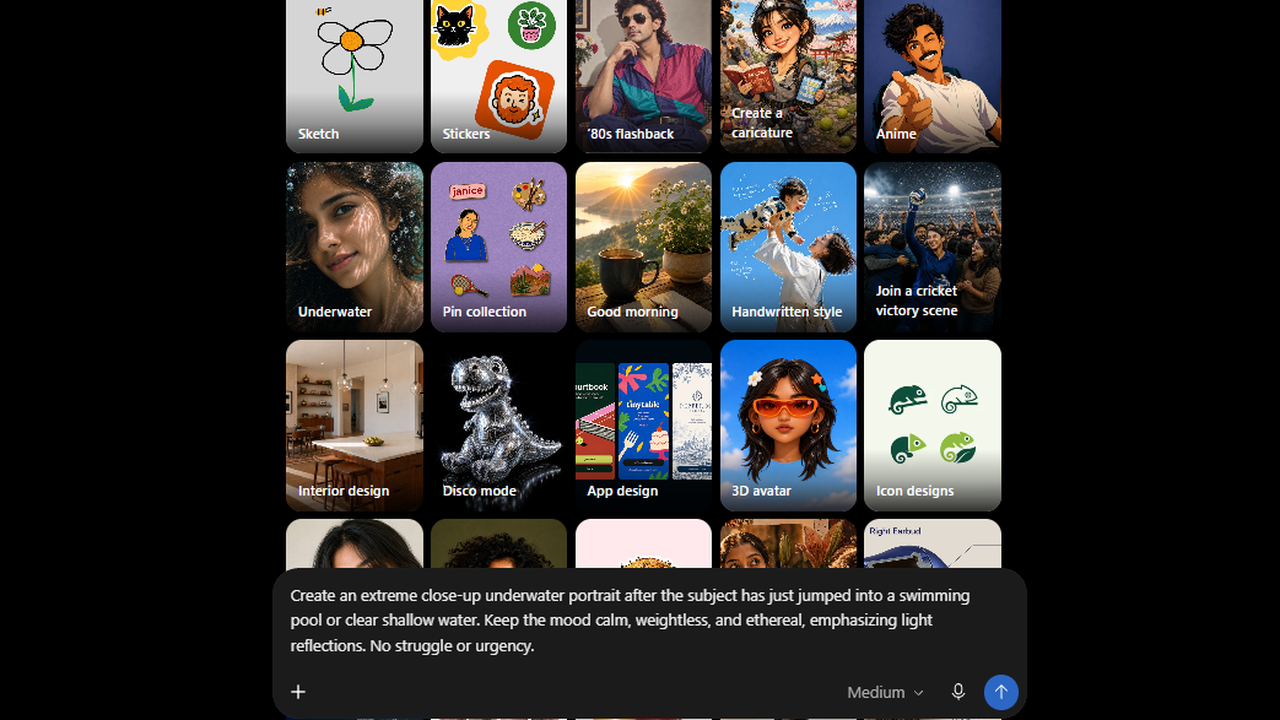
OpenAI's generation now lives natively inside ChatGPT and the API as the GPT Image line, which took over after the DALL-E models were retired in 2026. It shines at following intricate instructions, rendering legible text, and refining through conversation.
Strengths
- Excellent at multi-part instructions
- Best in class at readable text inside images
- Conversational edits, for example "nudge the logo left"
- Available on free and paid plans
Trade-offs
- It's slow. A single image can take close to a minute versus a few seconds on diffusion tools, so it's a poor fit for generating in volume.
- There's no seed control, so you can't lock or exactly reproduce a result, which is ironic for a tool built around conversational iteration.
- Moderation is aggressive and opaque: it refuses real public figures and many edgier prompts, and it tends to stamp outputs with a recognisable warm, slightly yellow cast.
Stable Diffusion for control
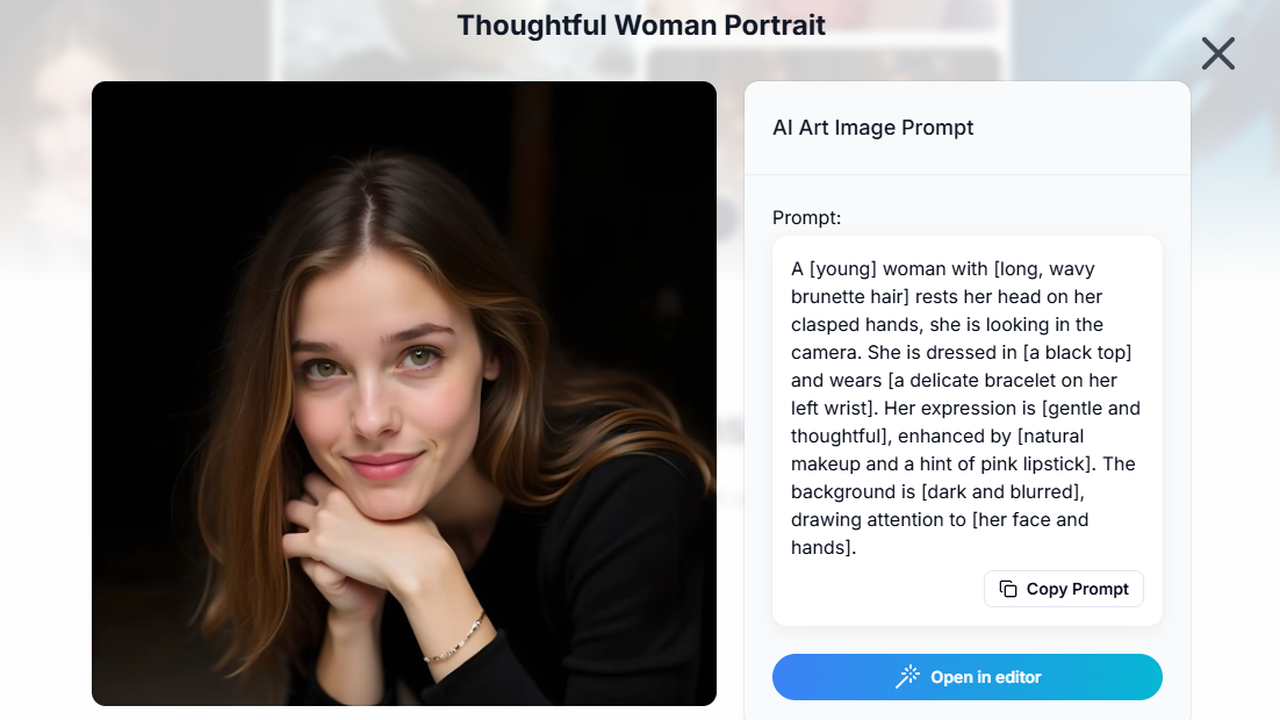
An open-source model family you run on your own hardware or through hosted front-ends. It offers the deepest control anywhere, with custom models, composition guidance via ControlNet, and image-to-image workflows.
Strengths
- Free to run on a capable GPU
- Thousands of community fine-tuned styles
- Granular control over pose and composition
- Full privacy when run locally
Trade-offs
- Getting started is a project in itself: installing a front-end like Automatic1111, ComfyUI, or Forge, then downloading and managing model files, all before your first image.
- Local use realistically needs a dedicated GPU with around 8GB of VRAM as a floor, and the newer base models want more, which rules out most laptops.
- The base checkpoints look plain beside Midjourney, so good output depends on hunting down community fine-tunes whose licences are frequently unclear.
Flux for cheap photorealism
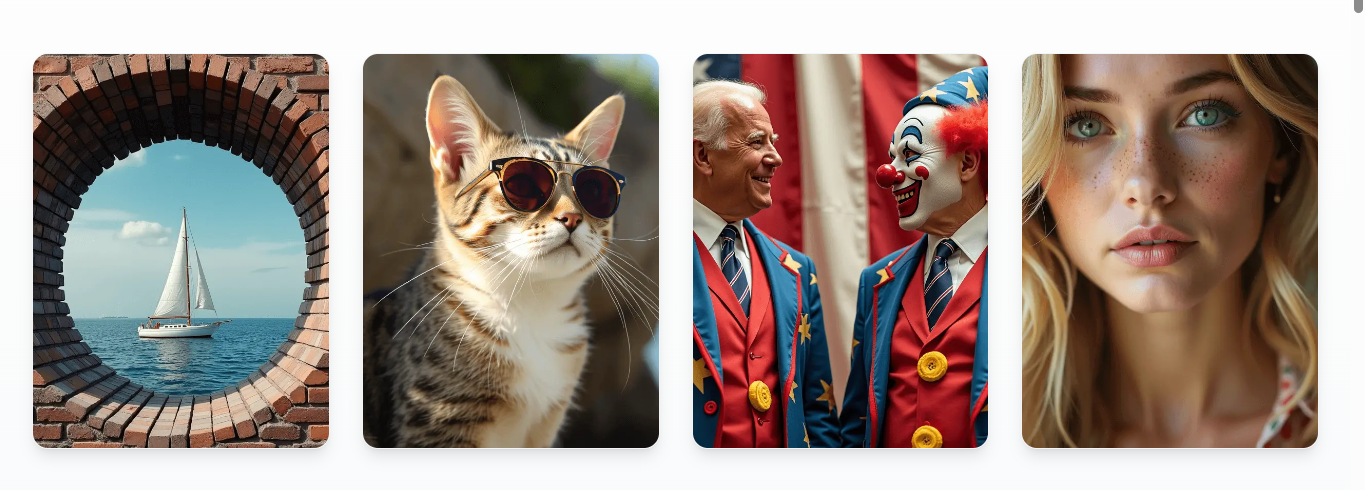
An open-weight family from Black Forest Labs that rivals the leaders on realism at a low per-image cost. Several providers host it, you can self-host it, and a lot of former Stable Diffusion users have migrated over.
Strengths
- Strong photorealistic output
- Low cost per image through hosts
- Open weights for self-hosting and tweaking
Trade-offs
- The best version, Flux Pro, is closed and API-only; of the open weights, Dev carries a non-commercial licence that quietly blocks paid work, leaving only Schnell fully free to use commercially.
- Running the full model locally is demanding. It realistically wants a 24GB card, and the smaller quantised builds that fit consumer GPUs lose visible quality.
- It's a model, not a product: there's no polished first-party app, so your experience hangs entirely on whichever third-party host you pick.
Adobe Firefly for commercial peace of mind
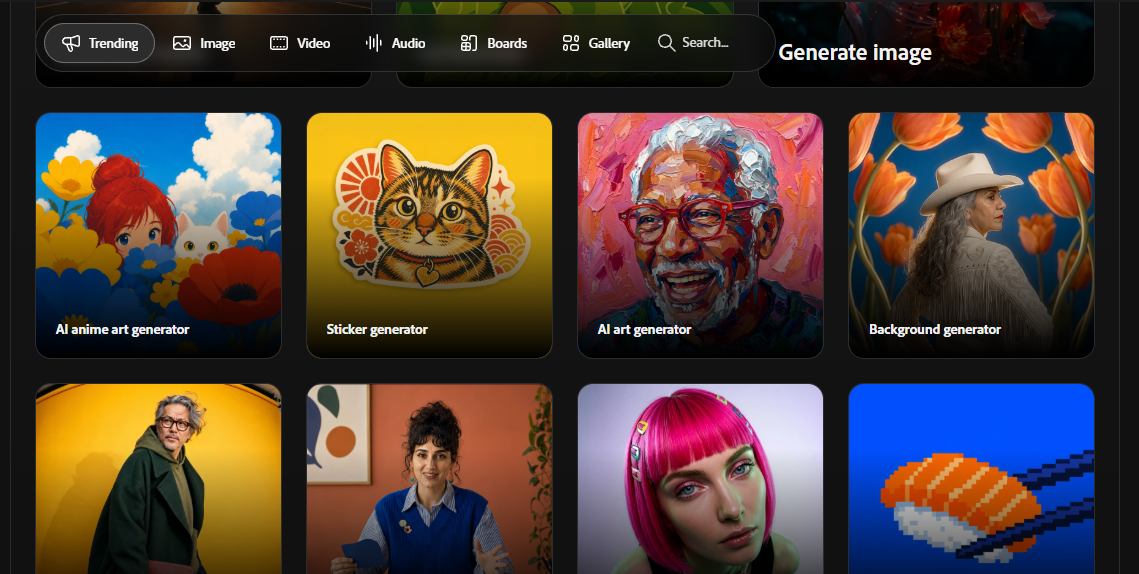
Adobe's generator, trained on licensed and Adobe Stock material, built for people who want firmer commercial footing. It is woven through Adobe's creative apps.
Strengths
- Trained on licensed data, which lowers legal exposure
- Baked into Photoshop and other Adobe apps
- Familiar if you already live in Adobe
Trade-offs
- Out-of-the-box realism trails Midjourney and Flux; the house style is safe and competent but a little flat.
- It runs on a monthly generative-credit allowance tied to your Creative Cloud plan, so heavy use either throttles or pushes you to a pricier tier.
- Its content filters are the strictest of the group, so stylised, edgy, or brand-adjacent prompts get blocked more often than on the open tools.
Ideogram for words inside images
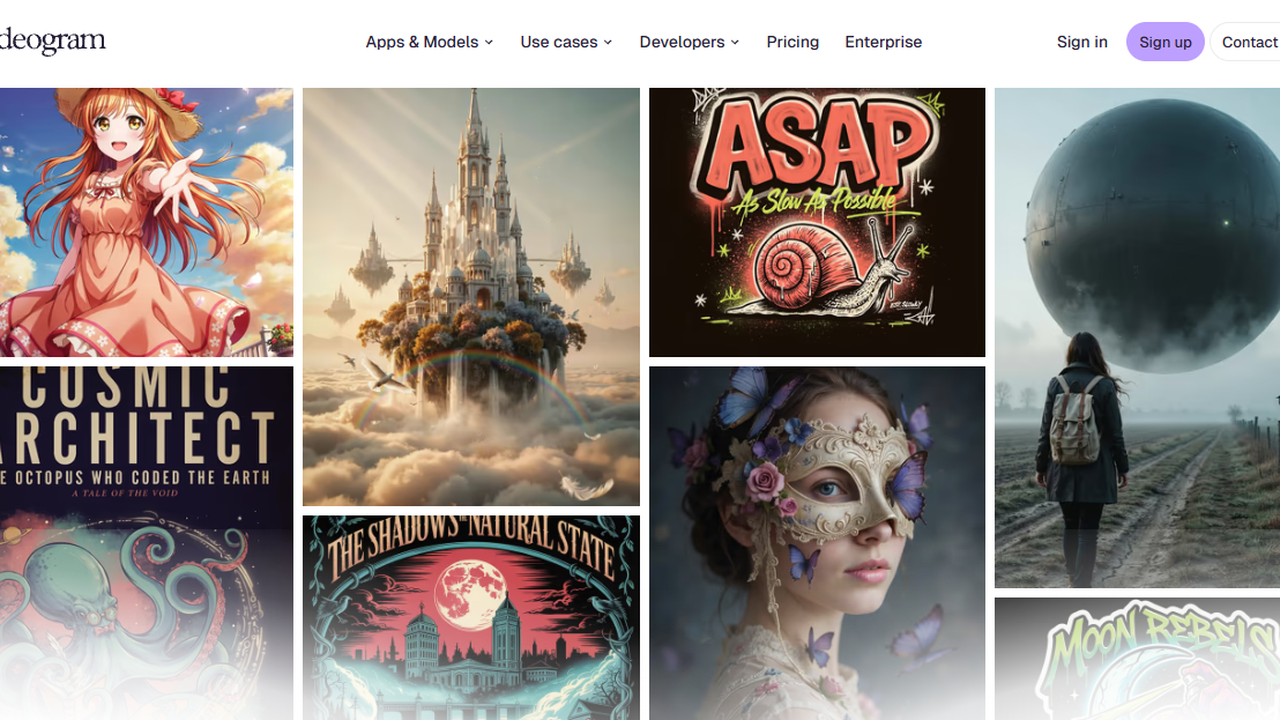
A generator that nails accurate letterforms, which makes it the practical choice for logo-style work, posters, and text-carrying social graphics.
Strengths
- Best in class text accuracy
- Genuinely useful for typographic work
- A limited free daily allowance with commercial rights
Trade-offs
- Its strength is narrow: letterforms and typographic layouts are excellent, but general photorealism and painterly styles lag well behind the all-rounders.
- Free generations are slow and capped, so iterating on a design means either waiting out a queue or upgrading.
- For heavily stylised fine-art looks it's the wrong pick, since Midjourney or a tuned Stable Diffusion model will get you there faster.
The one-line version
| Tool | Reach for it when | Access | Commercial use | Curve |
|---|---|---|---|---|
| Midjourney | you want polish fast | Paid subscription | Granted on paid plans | Low to medium |
| ChatGPT Images | instructions and text must be exact | Free and paid | Outputs are yours | Low |
| Stable Diffusion | you want maximum control and privacy | Free, self or hosted | Varies by model licence | High |
| Flux | you want low-cost realism at volume | Per-image or self-hosted | Depends on tier and host | Medium |
| Adobe Firefly | commercial safety matters most | Paid, with Creative Cloud | Built for commercial use | Low |
| Ideogram | the words in the image must be right | Free and paid | Commercial rights available | Low |
Rule of thumb Midjourney for look, ChatGPT Images for accuracy and text, Stable Diffusion or Flux for control and volume, Firefly for commercial calm, and Ideogram when the text must be perfect.
Six Ways People Sabotage Their Own Prompts
- Cramming in ten ideas. Competing instructions confuse the model. Decide what matters most and cut the rest.
- Going vague on the one thing that counts. If the subject is the point, describe it first and in the most detail.
- Pasting long prompts you do not understand. Borrowed prompts full of mystery terms are impossible to fix when they break. Learn what each part does.
- Forgetting the aspect ratio. Making a square for a tall banner just buys you a cropping chore later.
- Demanding text from a tool that cannot do it. If you need readable words, start with Ideogram or ChatGPT Images instead of wrestling a weak one.
- Not saving the wins. Keep the prompts and settings that worked so you can rebuild results instead of starting cold.
The Pre-Generate Checklist
A quick pass before you commit. These are the calls that most shape the final image.
- The subject is stated plainly and comes first.
- The must-have details are spelled out.
- A style or medium is named.
- Framing and light are described.
- A palette or mood is set, if it matters here.
- The aspect ratio fits where the image will live.
- Anything to exclude is handled, with a negative field or a positive rephrase.
- The prompt and settings are saved for next time.
The Takeaway
Better images come from clearer decisions, not longer paragraphs. Lead with your subject, pin down the details that have to be right, name a style, then set framing, light, colour, and ratio on purpose. When something is close but not quite, change one thing at a time, and save the prompt and settings behind every image you are proud of.
For tools, match the pick to the task rather than crowning a single champion:
- Midjourney for effortless polish.
- ChatGPT Images for instruction accuracy and legible text.
- Stable Diffusion or Flux for control, privacy, and volume.
- Adobe Firefly for commercially safer work inside Adobe apps.
- Ideogram when the words in the image have to be right.
If you adopt just one habit, make it the log. Keep a short record of what worked, iterate one change at a time, and your prompts will get sharper with every single session.
Discussion 0
More posts

NovelAI: An Hour of Notes Before I Wrote a Single Word
A hands-on NovelAI review: the broken sign-up, the encryption catch, real pricing, the models, real user reviews, and wh...

StealthWriter AI : Hands-On Test of the Humanizer and AI Detector
I put StealthWriter AI through a real test: a Wikipedia paragraph that its detector scored 0% human was rewritten to 100...
Originality.ai: I Tested It and It Flagged Wikipedia as 100% AI
I pasted a plain Wikipedia paragraph into Originality.ai and it came back "Likely AI – 100% Confidence." Two scans later...
Please log in or create an account to join the discussion.